
myTeam > Team Incentive Details
The Team Incentive Details report provides real-time visibility into your team’s payments
and orders for a selected period.
Team Incentive Details Actions
1. Hierarchy Period—Select the period and date to view. By default, the current
period is selected
2. My Team—A graphical representation of your team. Select the person whose
report you want to view
3. Organization Hierarchy—A hierarchical tree of all people in your team. Select
the person whose report you want to view
4. Submit Inquiry—Send disputes or requests for information to your administrator
or manager
5. Download Details—Download a team member’s report as a Microsoft Excel
document
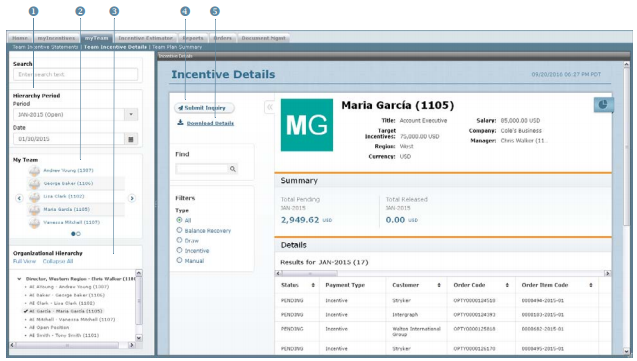
Team Incentive Details Screen
note: If you are downloading more than 40,000 items, the file will be available in the
Downloads area (accessible using the  button in the main menu).
Also, the Credit, Commission, and Bonus columns appear before the Payment column
in the Excel download.
Team Incentive Details Report Sections
The Team Incentive Details report consists of the following sections:
1. Personal Information—Shows the name, along with other personal details such
as the title, manager, currency, and more
2. Summary—Shows a summary of payments
3. Details—Shows payments for orders
4. Payment Details—Shows related information, such as processed orders, credits, commissions, and bonuses for a specific order, or details such as comments about a manual payment
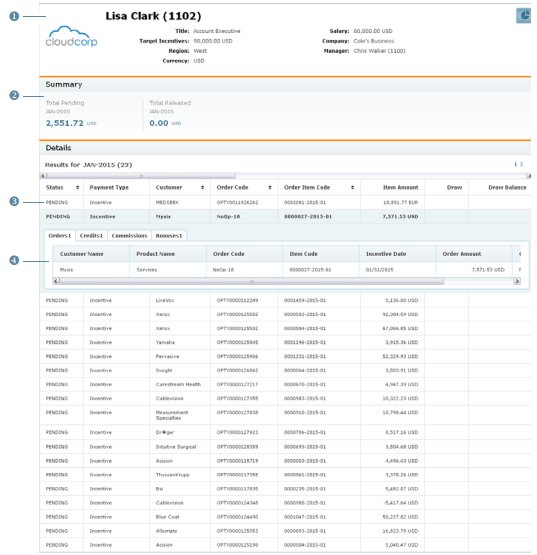
Team Incentive Details Report
All Columns
The following table describes the incentive details displayed:
| Field | Description | |
|---|---|---|
| Personal Information | Name | The name of the person. |
| Title | The title of the person. | |
| Salary | The salary of the person. | |
| Target Incentives | The target incentives of the person. | |
| Company | The company name of the person. | |
| Region | The region of the person. | |
| Manager | The person's manager | |
| Currency | The compensation currency | |
| Summary | Total Pending | The total pending payment. |
| Total Released | The total released payment. | |
| Details | Status | The status of the order item payment, from among the following: • Pending—An order item has been processed, payments computed, and the order item is waiting to be released. • Released—An order item has been released for payment by the administrator. |
| Payment Type | The payment type, such as Incentive or Manual Payment. |
|
| Customer | The customer associated with the order item. |
|
| Order Code | The sales order code. | |
| Order Item Code | The item associated with the order code. | |
| Item Amount | The item amount. | |
| Draw | The guaranteed incentive payments, calculated monthly. |
|
| Draw Balance | The balance of draw accrued. | |
| Payment | The payment amount for the order item. | |
| Payment FX Rate | The date that determines the commission-to-payment exchange rate. |
|
| Details | Product | The product associated with the order item. |
| Geography | The geography associated with the order item. | |
| Incentive Date | The date the order item processed. | |
| Person Name | The person associated with the order item. | |
| Business Group | The business group with which the user is associated. |
|
| Item Payment | The payment associated with the order. | |
| Item Payment FX Rate | The exchange rate for the item payment. |
How to…
This section describes how to display and manage your team’s incentive details.
Display the Team Incentive Details Report
1. Click the myTeam tab, then click Team Incentive Details in the secondary menu.
The Team Incentive Details screen appears.
2. In the Hierarchy Period pane, choose period and date using the corresponding fields

Team and Organizational Hierarchy
3. (Optional) Search for a person by typing text in the Search box and selecting the
appropriate person that appears.
4. (Optional) Select a person using either the My Team or Organizational Hierarchy
pane.
Using the My Team pane, do the following:
• Click the  and
and  buttons to display the previous and next screen of team
members, respectively.
• Select a person to display the corresponding report.
Using the Organizational Hierarchy pane, do the following:
• Click the button to expand the hierarchy by a single level. Similarly, click the
button to collapse the hierarchy to the corresponding level.
• Select a person to display the corresponding report.
• Click the Collapse All button to collapse the view to the root (top) of the hierarchy.
• Click Full View to button to display the organizational hierarchy using the entire
left pane. Similarly, click the Normal View button to shrink the organizational
hierarchy down to the bottom of the left pane (default view).
5. To find specific payments, type the search terms in the Find text box, and click the 
button. The search results appear.
6. To filter payments, select a radio button in the Filters section.
You can choose from among the following options:
• All
• Balance Recovery
• Draw
• Incentive
• Manual
7. To view details, click an entry in the list.
The entry expands to show related information such as processed orders, credits,
commissions, and bonuses (organized as tabs), or details such as comments about
a manual payment.
Click the Processed Orders, Credits, Commissions, or Bonuses tab to display the
corresponding details.
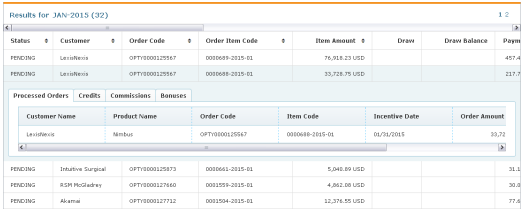
Incentive Details
8. To sort a column, click the  button in the column heading. Then click the
  and
and 
buttons to sort the column ascending and descending respectively.
9. To collapse or expand the pane on the left side, click the button or the
button respectively.
10. Use the page navigation buttons to navigate between the pages of results.
Submit an Inquiry
You can submit an inquiry to communicate disputes and requests for information with
your manager or administrator.
1. Click the Submit Inquiry button. The Submit Inquiry dialog appears.
2. In the To field, click the Select Users button. The Select Users dialog appears. Select
the appropriate users, and click the  button.
3. In the Subject field, type the subject of the inquiry message.
4. In the Description field, type the body of the inquiry message.
5. Click the button. The message will appear in the Messages area,
accessible by clicking the  button in the main menu (top right of the screen).
When the recipient replies to your inquiry, the response similarly appears in the
Messages area.
Download the Report as an Excel Document
You can download the incentive details as a Microsoft Excel document for offline
viewing and analysis.
• Click the Download Details button on the Incentive Details main screen.
Depending on your browser, a dialog might appear allowing you to specify where
to save the file.