
Reports > Report Folders > Custom Report
You can display a custom report using the Custom Reports area.
Screen
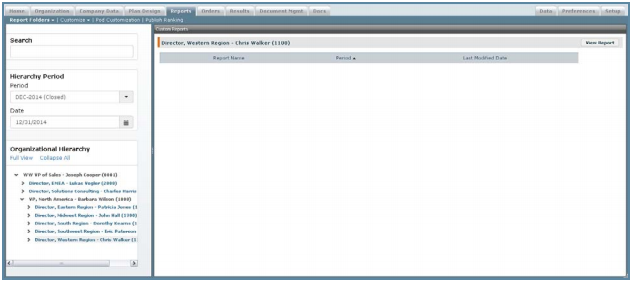
Custom Reports
Displayed Columns
The following table describes the information displayed in the Custom Reports:
| Column | Description |
|---|---|
| Report Name | The name of the report. |
| Period | The report period. |
| Las Modified Date | The date when the report was last modified. |
How to…
This section describes how to display a custom report.
Display a Custom Report
1. Click the Reports tab, then click Report Folders > Custom in the secondary menu.
The Custom Reports screen appears.
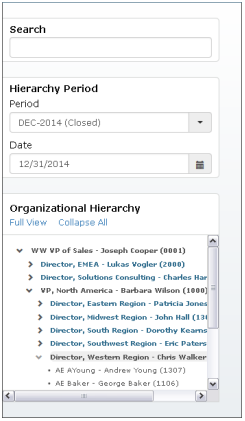
2. In the Hierarchy Period pane, choose period and date using the corresponding
fields.
Organizational Hierarchy
3. (Optional) Search for a person by typing text in the Search box and selecting the
appropriate person that appears.
4. (Optional) Select a person using the Organizational Hierarchy pane.
Do the following:
• Click the  button to expand the hierarchy by a single level. Similarly, click the
button to collapse the hierarchy to the corresponding level.
• Select a person to display the corresponding report.
• Click the Collapse All button to collapse the view to the root (top) of the hierarchy.
• Click Full View to button to display the organizational hierarchy using the entire
left pane. Similarly, click the Normal View button to shrink the organizational
hierarchy down to the bottom of the left pane (default view).