
Reports > Customize > Incentive Details
Use this option to define the sections of the standard Incentive Details report that can be viewed by all users.
On the Incentive Details page, you can perform these actions:
- Edit Report—Select the report sections users can view.
- Edit Personal Information—Edit the personal information displayed in the Incentive Details section
- Payment—Click to specify which sections (Credit, Commission, and/or Bonus) will be included in Payment Details.
Screen
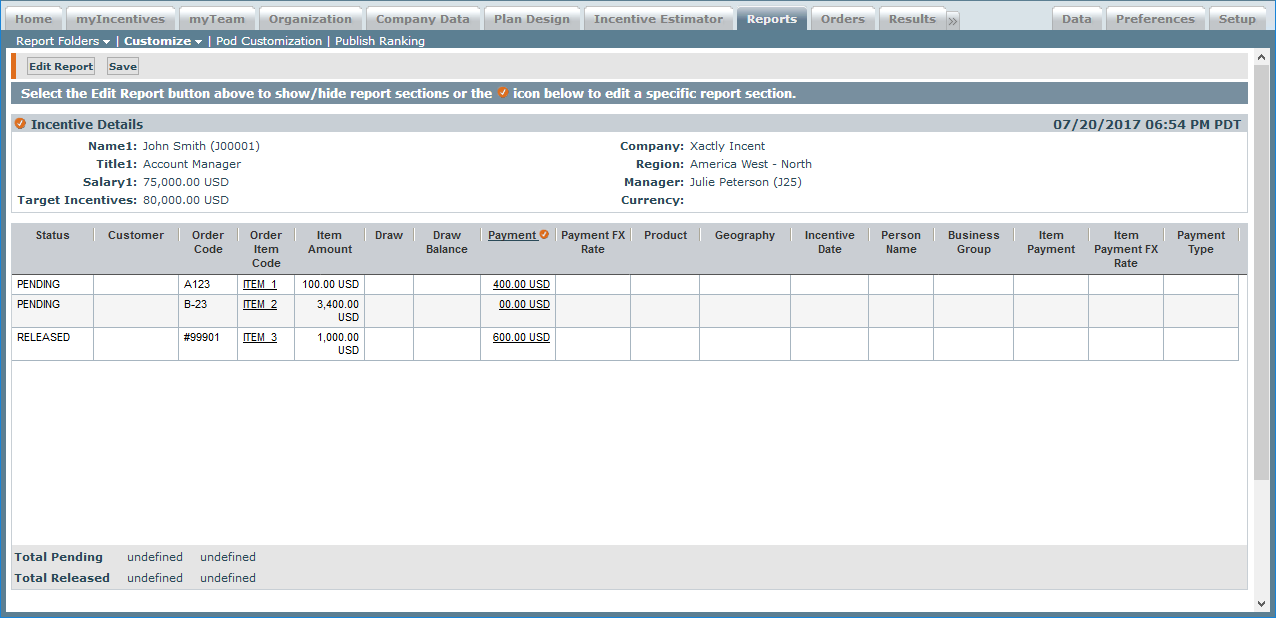 Incentive Details Screen
All Fields
The following table describes the information you can specify when customizing the Incentive Details report:
| Section | Column | Description |
|---|---|---|
| Incentive Details | Name | The name of the person. |
| Title | The title of the person. | |
| Salary | The salary of the person. | |
| Target Incentives | The target incentives of the person. | |
| Company | The person's company. | |
| Region | The person's region. | |
| Manager | The manager of the person. | |
| Currency | The currency for the person. | |
| Report | Status | The incentive status. |
| Payment Type | The payment type, such as Incentive or Manual Payment. |
|
| Customer | The name of the customer. | |
| Order Code | The order code. | |
| Order Item Code | The order item code. | |
| Item Amount | The amount of the item. | |
| Draw | The amount of the draw. | |
| Draw Balance | The draw balance. | |
| Payment | The amount of the payment. The amount shown is a link, which you can click to view order item incentive details. |
|
| Payment FX Rate | The exchange rate for the payment. | |
| Product | The name of the product. | |
| Geography | The name of the geography. | |
| Incentive Date | The date that a calculated incentive is given to a person for an order item |
|
| Person Name | The name of the person. | |
| Business Group | The name of the business group. | |
| Item Payment | The payment amount for the item. | |
| Report | Item Payment FX Rate | The exchange rate for the item payment. |
| Summary | Total Pending | The total pending payments. |
| Total Released | The total released payments. |
How to…
Edit the Report
To select the report sections that you want to be seen by all users, do the following:
1. Click the Reports tab, then click Customize > Incentive Details in the secondary menu. The Incentive Details screen appears.
2. Click the Edit Report button. The Select the Report Sections dialog appears.
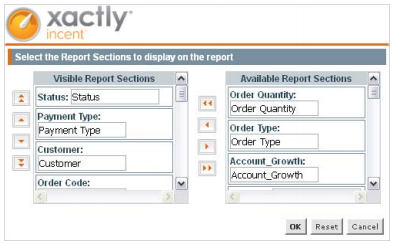 Incentive Details Edit Report Screen
3. Scroll down to view all of the report sections.
4. Use the right arrow to move a report section that you do not want to appear in the report to the Available Report Sections list.
5. Use the up and down arrows to reorder the report sections in the Visible Report Sections list.
6. Click OK.
7. Click the Save button to save your changes.
Edit Personal Information
To edit the personal information displayed in the report section, do the following:
1. Click the  icon next to Incentive Details. The following dialog appears.
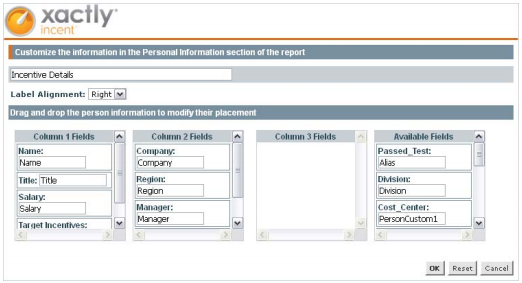 Customize Incentive Details Screen
2. You can change the report section label, change the label alignment, select standard and custom person fields to display, arrange the information across three columns, hide any fields you do not want to display, and change the field labels.
• To move any of the fields drag and drop them to another column.
• To hide any of the fields so they do not display on the report, drag and drop them to the Available Fields column.
• To change any of the field labels, double-click on the field and change the field label name.
3. Click OK.
4. Click the Save button to save your changes.
Order Item Incentive Details
When you click an amount in the Payment section, the Order Item Incentive Details dialog appears.
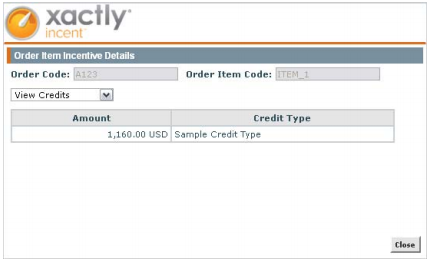
Order Item Incentive Details Screen
In this example, if you select View Credits from the drop-down menu, the window displays any credits associated with the order item.
If you select View Commissions from the drop-down menu, the window displays any commissions associated with the order item.
Specify Payment Details
You can specify the information to display on the Order Item Incentive Details screen by doing the following:
1. Click the Payment heading on the Incentive Details screen. The following dialog appears:
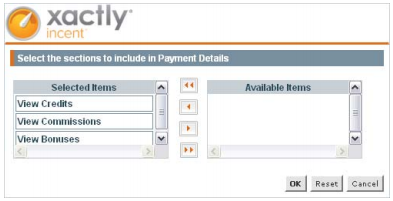 Payment Details Screen
2. Move any items that you want to be display options (Commission, Credit, and/or Bonus) on the Order Item Incentive Details screen to the Selected Items area. Move any items you do not want displayed to the Available Items area.
• Use the double arrow keys to move everything from one column to another.
• Use the left or right arrow keys to move a single item from one column to another. You must highlight the item first.
3. Click OK.
4. Click Save to save your changes.
note: The Incentive Details view in Excel will display the information and sections as you have specified in the report customization.