
Reports > Customize > Pod Rankings
You can manage the ranking groups that display in the Individual Ranking on Attainment
and Team Ranking on Attainment pods using the Pod Rankings area.
note: You can define a maximum of 20 active ranking groups, as required, with
each group including up to 5 quotas.
Screen
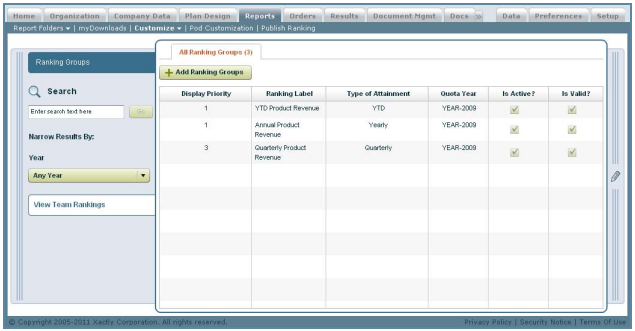
Customize Pod Rankings Screen
Fields
The following table describes the information displayed when managing ranking
groups:
| Column | Description |
|---|---|
| Display Priority | The display order for the ranking group. |
| Ranking Label | The label of the ranking group displayed in the pods. |
| Type of Attainment | The attainment type, from among the following: Period, Quarterly, QTD (Quarterly-to-date), Yearly, and YTD (Year-to-date). |
| Quota Year | The quota year associated with the ranking. |
| Is Active? | Indicates whether the ranking group is active. |
| Is Valid? | Indicates whether the ranking group is valid. Ranking groups can become invalid based on changes made to Quotas, such as the Unit Type. |
How to…
This section describes how to manage the ranking groups.
Display the Ranking Groups
1. Click Reports > Customize > Pod Rankings.
2. (Optional) Choose the year using the  drop-down
menu.
3. (Optional) Type a value in the Search field and click  to display matches in
a new search tab.
Add a Ranking Group
1. Click the  button. The New Ranking Group screen
appears.
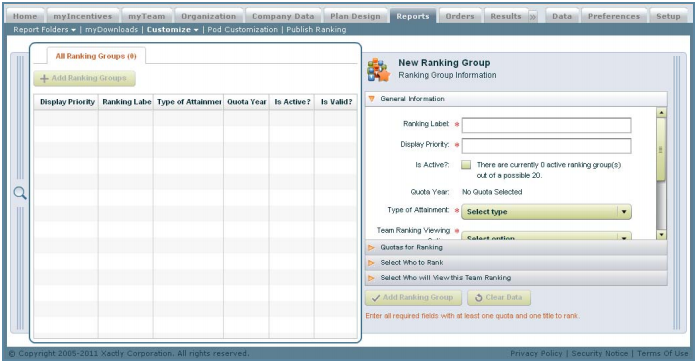
New Ranking Group Screen
2. Specify the new ranking group information.
a. Specify the general information related to the new ranking group.
You need to specify the ranking label, the display priority, the attainment type,
the team ranking view option, and the individual ranking view option.
b. Click the Quotas for Ranking panel, click the  button, select the quotas
to use for the ranking, and click the  button.
You can select from one to five quotas. If you select more than one quota,
results are based on a blending of the quotas (adding the credits related to
each quota, and then dividing by the sum of the quota values from each
quota) to determine the ranking.
note: The quotas you select must be within the same year and must have the
same Quota Unit Type.
c. Click the Select Who to Rank panel, click thebutton, select the titles to
include as part of the ranking group, and click the button.
This specifies the people who are eligible to be included in the ranking report
(if they are associated with a quota that is selected). Alternatively, click the
Select All Titles checkbox to include all titles in the ranking group (In which
case, Not Applicable appears over the table of selected titles).
note: A person needs to be in a position for the published ranking period in the
current year to be included in the ranking.
d. Click the Select Who Will View this Team Ranking panel, click the button,
select the titles of those who can view the associated ranking results, and
click the button.
This specifies who can view the ranking in the Team Rankings pod. Alternatively,
click the Select All Titles checkbox to include all titles as those who will
view the associated ranking results (In which case, Not Applicable appears
over the table of selected titles).
note: A user must be included in the ranking group to view the ranking in the
Individual Ranking pod.
The following describes the information you can specify in each panel:
| Panel | Field | Description |
|---|---|---|
| General Information | Ranking Label | The label of the ranking group. This is displayed on the pod as the name of the ranking for the sales team. |
| Display Priority | The display order for the ranking group. This specifies the priority of rankings to display for a user in the Individual and Team Ranking pods. If you specify identical priorities, rankings are listed in alphanumeric order. Note that each pod only displays the top three rankings for a user. Users can view other rankings by drilling down to ranking details. |
|
| Is Active? | Indicates whether the ranking group is active. Only 20 ranking groups can be active at any time. |
|
| Quota Year | (Read Only) The quota year associated with the ranking, based on the quotas selected for the ranking group. |
|
| Type of Attainment | The attainment type, from among the following: Period, Quarterly, QTD (Quarterly-todate), Yearly, and YTD (Yearto-date). |
|
| Team Ranking Viewing Option | The viewing options for the team ranking, from among the following: • Show all—Shows all people in the ranking to anyone who can view the ranking group • Hide based on hierarchy— Filters the ranking group results to people under the viewing manager in the hierarchy |
|
| General Information | Individual Ranking Viewing Option | The viewing options for individual rankings, from among the following: • Show all—Shows all the displayed data to anyone viewing the Individual Ranking • Mask people names—Shows only the attainment (for users other than the user viewing the Individual Ranking) • Show only people names— Shows only person names and attainments (for users other than the user viewing the Individual Ranking) |
| Description | An optional description of the ranking group, displayed when a user clicks Ranking Description in the pod. |
|
| Quotas for Ranking | Selected Quotas | The names of the selected quotas. You can select up to five quotas (note that the unit type—even variables—must match). |
| Unit Type | The unit type for the corresponding quota. |
|
| Remove? | A link allowing you to remove the quota, if required. |
|
| Select Who to Rank | Select All Titles | Click the checkbox to include all titles in the ranking group. |
| Selected Titles | The names of the selected titles that are eligible for display in the ranking. To be displayed, the person associated with the selected titles must be associated with the selected quotas |
|
| Remove? | The names of the selected titles that are eligible for display in the ranking. To be displayed, the person associated with the selected titles must be associated with the selected quotas |
|
| Select Who Will View this Team Ranking | Select All Titles | Click the checkbox to include all titles as those who will view the associated ranking results. |
| Selected Titles | The names of the selected titles. People associated with these titles can view the ranking in the Team Ranks on Attainment pod. |
|
| Remove? | A link allowing you to remove the title, if required. |
The following describes how each type of attainment is calculated:
| Type of Attainment | Calculation |
|---|---|
| Period | Period credits/Period quota value |
| Quarterly | (Sum of credits for periods in the quarter) / (Quarterly quota value) |
| QTD | (Sum of credits for periods in the quarter up to the current period) / (Sum of quota period values in the quarter up to the current period) |
| Yearly | (Sum of credits for periods in the year) / (Yearly quota value) |
| YTD | (Sum of credits for periods in the year up to the current period) / (Sum of quota period values in the year up to the current period) |
3. Click the  button to save the ranking group. Alternatively,
click the  button to clear your entries without saving.
Edit a Ranking Group
1. Click the Ranking Groups tab on the left of the screen. The Ranking Groups screen
appears.
2. Click a ranking group in the list. The Ranking Group Information pane opens displaying
the general information.
3. Click the appropriate panel heading, and modify the corresponding information,
as required.
4. Click the button to save your changes. Alternatively,
click the  button to undo your current changes.
Copy a Ranking Group
1. Click the Ranking Groups tab on the left of the screen. The Ranking Groups screen
appears.
2. Click a ranking group in the list. The Ranking Group Information pane opens displaying
the general information.
3. Click the  button, and choose Copy Ranking Group from
the drop-down menu.
4. In the General Information panel, type a new Ranking Label*.
5. Click the button to save the ranking group. Alternatively,
click the button to clear your entries without saving.
Delete a Ranking Group
1. Click the Ranking Groups tab on the left of the screen. The Ranking Groups screen
appears.
2. Click a ranking group in the list. The Ranking Group Information pane opens displaying
the general information.
3. Click the button, and choose Delete Ranking Group
from the drop-down menu. A confirmation dialog appears.
4. Click Yes to delete the ranking group. Click No to dismiss the dialog without deleting
the ranking group.
Display the Team Rankings
note: This feature allows administrators to view the rankings. Non-administrators
should use the pods to display rankings.
1. Click Reports > Customize > Pod Rankings.
2. Click the View Team Rankings tab on the left to display the available team rankings.
3. (Optional) Select a Ranking Group in the list.
4. (Optional) Type the value in the Search field and click to display matches
in a new search tab.