
Results > Draws
You can use the Draws area to view draws in a period that have been created or calculated.
Note the following about draw results:
• Manual draws are not permitted.
• If multiple draws are calculated for a position in a period, each result will have a unique draw record in the Results > Draws area. Also, multiple draw amounts will be shown in the Results > Payments area, and only one draw balance. For more information, see Use Multiple Draws in the Plan Design chapter.
• Recoverable and recoverable guarantee draws can be calculated by a recovery percentage (anything between 0 and 100). For an example, see Use Multiple Draws in the Plan Design chapter.
• If a draw is saved with earning group information in the Plan Design area, the earning group information is displayed as part of the draw results.
note: Business group administrators can only search, view, and download draw results that are associated with business groups to which the administrators themselves are assigned.
Customizing Searches
The Draws area offers you the ability to customize your standard searches. By configuring and saving the search fields and columns, you can tailor the search experience to your needs and save time finding precisely the information you need. Customized searches are defined by the following information:
• Search fields—The specific data fields used in the search. The search fields you specify appear in the Filters pane of the sidebar after running a search, allowing you to fine-tune your search in an iterative fashion.
• Columns—The columns of data that appear as part of the search results. Specifying the columns and their order allows you to prioritize important information on the search results page.
You can also create saved searches that define specific search fields and search criteria. You can then access not only your previously-saved searches, but also searches saved by other administrators. You can further mark certain saved searches as favorites for quick and easy access.
For more information, see “Customizing and Saving Searches”.
Screen
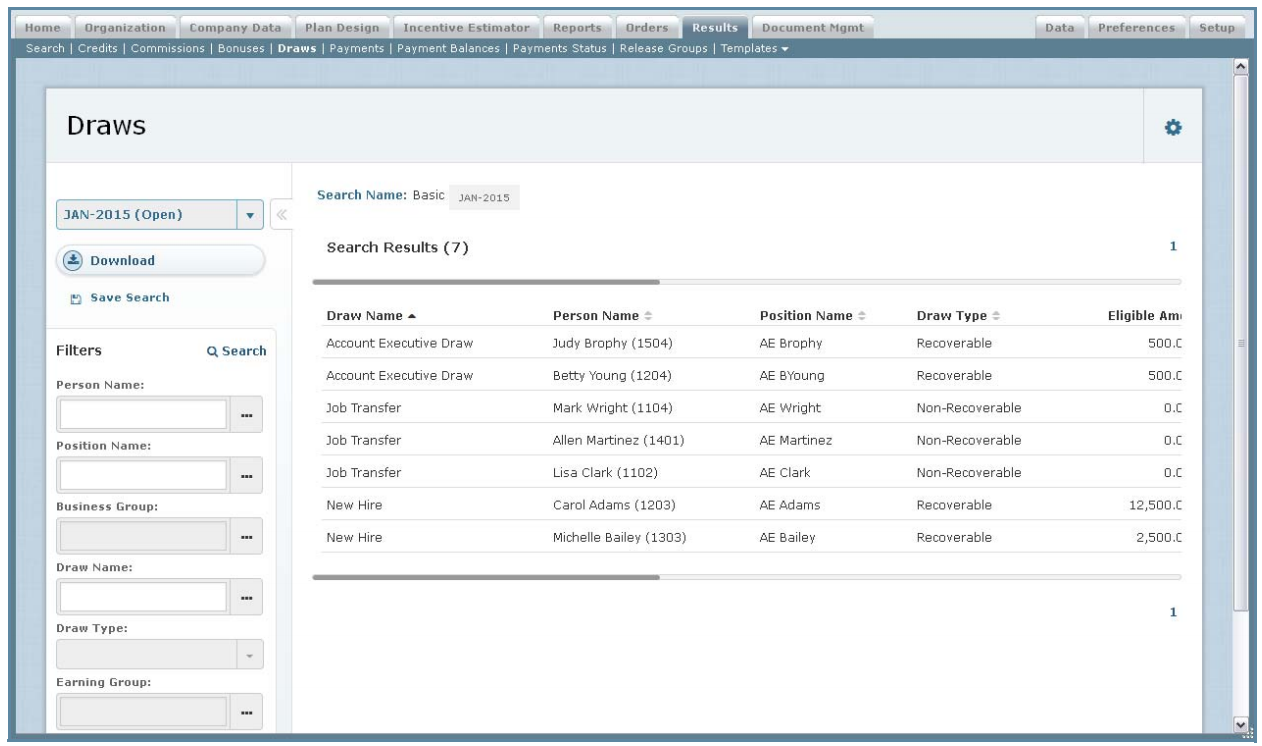 Draws Screen
Draws
The following table describes the information displayed when searching draws:
| Field | Description |
|---|---|
| Balance | The balance associated with the draw. |
| Business Group | The business group associated with the draw. |
| Created Date | The date and time on which the draw was created. |
| Draw Name | The name of the draw. |
| Draw Type | The type of the draw, from among the following: • Non-Recoverable Guarantee • Non-Recoverable • Recoverable • Recoverable Guarantee |
| Earning Group | The earning group associated with the draw. |
| Eligible Amount | The eligible amount for the draw. |
| Finalized Date | The dat on which the draw is finalized. |
| Pay Amount | The draw pay amount. |
| Period | The period for which draws are displayed. |
| Person Name | The name of the person associated with the draw. |
| Position Name | The name of the position associated with the draw. |
note: You can configure the search fields that appear in the Filters pane of the sidebar when defining the search settings
How to…
This section describes how to manage draw results.
Search Draws
1. Click the Results tab, then click Draws in the secondary menu. The Draws screen appears allowing you to specify the search criteria.
2. In the Period field (on the left), choose a period using the drop-down list.
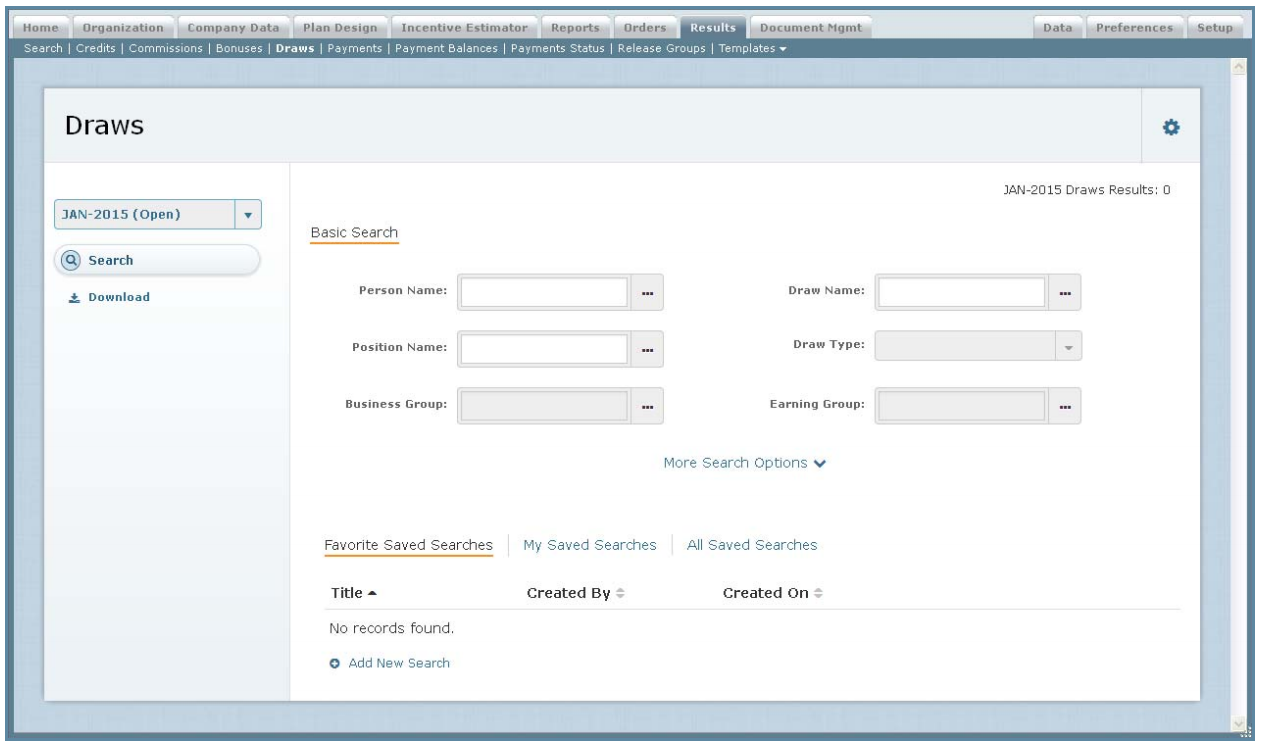 Basic Search Screen
3. Specify the basic search criteria.
Do the following:
• In text fields, type an appropriate value in the field.
• In drop-down list fields, choose the appropriate value.
• In fields that allow you to search for a value, click the  button and select the appropriate value using the dialog that appears.
• In date fields, click the  button and select the appropriate date using the dialog that appears.
• To clear a field, click the button for the corresponding field.
4. Define a search using more fields, if required.
Do the following:
a. Click the More Search Options button (near the bottom).
b. In the Basic Search section, modify the basic search criteria.
c. In the Draw Information section, specify or modify the additional search criteria.
5. Click the button. The search results appear.
The search criteria appear above the results, as shown below:
 Search Criteria
To remove a field from the search criteria, click the button for the corresponding field.
6. Refine the search results, as required.
Do the following:
• In the Period field (on the left), choose a period using the drop-down list. The results update immediately.
• In the Filters pane (on the left), specify additional search criteria to further filter the search results and click the  button. The updated results appear.
• Click the  button to save the current search. The Create Saved Search dialog appears. Type a name for the search and click the
  button.
Download Draws
You can download draws to either a Comma Separated Values (CSV) or text (.TXT) file.
1. Click the Results tab, then click Draws in the secondary menu. The Draws screen appears allowing you to specify the search criteria.
2. Select the appropriate period.
3. To download all draws for the selected period, click the  button. The Download dialog appears.
a. In the Download Name field, type the name of the download.
b. In the Download Format field, select the download format (either CSV or TXT).
4. To download specific draws, search for the appropriate draws. The search results appear.
a. Click the  button. The Download dialog appears.
b. In the Download Name field, type the name of the download.
c. In the Download Format field, select the download format (either CSV or TXT).
5. Click the  button.
The download starts processing. You can check the status by clicking the  button in the main menu (top right of the screen). Click OK again.