
How Rules Drive Incentive Plans
You create rules in Xactly Incent to govern when and how credits, bonuses, and commissions are granted. A rule is the gating item by which the application knows whether to go forward with calculating payments for a person.
Rules are required before any calculation can be run (except for draws), and must be
created before you can set up a plan.
In Incent, every aspect of your company (the people, the hierarchy that defines their
interaction, their roles, and the units in which you measure things) comes together in a rule.

A rule defines the conditions under which a result can go forward and execute, specifying who gets paid and when, what they are paid, how much, and who else gets a
cut. A rule defines how each step in a plan is carried out and completed.
Except for Draws, which are calculated separately, all calculations take place within
a rule, in the sense that the rule defines the circumstances that will enable a calculation to occur.
Best Practices
When preparing your plan design, be careful to avoid creating circular references, as
this can cause the calculation process to hang or terminate. The most common types
of circular references include a formula referencing a rate table which in turn references the same formula.
Types of Rules
Under Plan Design, there are five types of calculation rules:
• Direct Credit Rule—Calculates a credit amount for the sales representative associated with an order item.
• Indirect Credit Rule—Calculates a credit amount for other people in the hierarchy,
based on a relationship (a reporting relationship or user-defined relationship type)
with the sales representative who receives a direct credit.
• Commission Rule—Calculates a commission based on a credit amount received
by the sales representative through a direct credit or by others through an indirect
credit.
• Commission Clawback Rule—Calculates a commission based on historic commission
rates using related order items.
• Bonus Rule—Calculates a bonus to be granted on a periodic basis or every time
an order item is placed. A bonus can be calculated based on order item or quota
attainment.
These rules allow you to flexibly and efficiently tailor how incentives are distributed within your organization.
How a Rule is Processed
When you add any of the three main rule types (Credit, Commission, or Bonus) to a
plan, whether a rule is processed and applied depends on three gating items:
• Position—The Order Item Incentive date must fall within the Incentive Start Date
and Incentive End Date for any positions assigned to the plan, or the rule will not
process.
• Order Incentive Date—The Incentive Date for an order must fall within the time
period defined by the Active Start Date and the Active End date of the rule.
note: The active start and end date periods for incentives and for rules include the
start date and the end date. For example, if an Incentive Date for an order falls on
the Start Date of a rule, it will be within the active period.
• Conditions—When Incent evaluates each condition in a rule, if all the conditions
are true, the rule is processed; if any are false, the rule is skipped, and Incent goes on to the next rule.
note: Assigning a condition to a rule is optional; however, for many situations, conditions allow you to have much more control over how incentive compensation is
granted.
Incent evaluates the two types of condition statements (AND and OR) as follows:
• AND statements—If a condition is all AND statements, Incent finds the first condition
that is false, skips the rule, and continues to the next rule.
• OR statements—If a condition is an OR statement, and both conditions are
false, Incent skips the rule, and goes to the next rule. If one of the conditions is
true, the results defined in the rule can be granted when the rule is applied.
• Combination of AND and OR statements—Incent again looks at the entire condition
to determine if one is true before skipping the rule, and continuing on to
the next rule. The application evaluates each conditional statement one by
one.
For example, for the following conditional statements in a rule, the application
will read the statements in this order, and apply parentheses around each
AND set, even though parentheses are not visible:
(IF OrderItem.OrderType = New Business
AND OrderItem.Product = Printers)
OR OrderItem.Product = Scanners
If the intention is that the rule should work if the order type is new business and
the product is scanners or printers, the condition should be written as:
IF OrderItem.OrderType = New Business
AND OrderItem.Product = Printers
OR OrderItem.Product = Scanners
AND OrderItem.OrderType = New Business
note: In some cases, it may be easier to use a numeric or relational formula to
set up the same conditions. Formulas provide additional flexibility—for example:
You can use parentheses to join different rule qualifiers together, for example:
IF OrderItem.OrderType = Newbusiness AND (OrderItem.Product = Printers
OR OrderItem.Product = Scanners)
You can use quotas in a formula—you cannot use quotas directly in a conditional
statement.
Once you’ve created a formula, you can use it in a conditional statement. For
more information on formulas, see Formulas in the Plan Design chapter of the
Xactly Incent Reference Guide.
Adding Conditions to a Rule
Defining rule conditions that specify how your rules will be applied is a powerful tool that you can use to customize how Xactly Incent grants incentive compensation.
Defining a rule has these basic steps that you execute in the Rules Library area under Plan Design:
| STEP 1 of 3: Define rule name, active dates, and type | Define a rule as a credit, bonus, or commission, name it, and add dates during which it is active. |
| STEP 2 of 3: Define a condition for this rule | Define condition(s) to determine when the rule is applied. (A condition is the IF part of an IF/THEN statement.) |
| STEP 3 of 3: Define result(s) created when the condition is true | Define a result that happens if the condition is true. (A result is the THEN part of an IF/THEN statement.) |
For some rules, conditions are not necessary and don’t make sense—for example, any
rule that is basically granted or not granted, such as a yearly commission or a bonus
that is granted every time, doesn’t require a condition.
Sometimes a rule requires some additional information to complete its definition. For
example, a commission that is based on selling a certain number of product units will
need to have the unit and the credit defined.
For example, consider the following rule:
Rule Name: New Printer SPIF
Active Start Date: 08/01/2006
Active End Date: 08/31/2006
Bonus Type: Every time
Description: If you see 10 or more new Xprint 200s on an individual order, you get
$100
You must still define the product unit (XPrint 200 printers) and the required order item quantity (more than 10). You can add this information as condition statements:
• IF OrderItem Product Equals XPrint 200
• AND OrderItem Quantity GreaterThanEquals 10
For this rule, Incent will process these condition statements as follows:
• If no XPrint 200 products are ordered, Incent will skip this rule and go on to the next rule.
• If Incent finds some XPrint 200 printers sold, but only finds 8 of them rather than 10, no bonus will be granted.
• If Incent finds more than 10 XPrint 200 products sold during August, the $100 bonus
will be granted.
Leveraging Rule Use
Rule conditions control when rules are applied. Where conditions can help you shape
the functioning of a rule include the following for each of the rule types:
• Direct Credit Rule—Applies to the primary person associated with an order. For
example, a condition defined for the rule might specify only one order type to be
considered, or it might reference a formula (OrderItem.SplitAmount) that specifies
that the credit equals the order amount.
• Indirect Credit Rule—Calculates a credit amount for other employees (such as
sales engineers, a manager, or a director), based on a reporting relationship or a
user-defined relationship with the person who receives the associated direct
credit. For example, you can specify that all sales engineers receive an indirect
credit, based on relationships to different sales representatives.
• Commission Rule—Calculates a commission based on a credit amount received
by a sales representative through a direct credit rule or another employee
through an indirect credit rule. A commission rule can be qualified by a condition
statement, but is often simply defined by a rate type and attainment measure. For
example, you can define a commission rule for a director by selecting Rate Table
(Rate Type) and TotalCredit Attainment (Attainment Measure), and selecting the
specific rate table, quota, and quota period when you define the rule results.
• Commission Clawback Rule—Calculates a commission based on historic commission
rates to be used in processing new commission results. For example, you can
define a commission clawback rule that states that every time a related order
occurs involving the customer Sara Lee Corp (IF statement) with an incentive date
that falls before a certain date (April 1, 2007) (AND statement), a commission
value is taken back based on the commission rate of the related order payment.
• IF RelOrderItem Customer Equals Sara Lee Corp
• AND RelOrderItem Incentive Date LessThanEquals 04/01/2007
• Bonus Rule—Calculates a bonus to be granted on a periodic basis or every time
an order item is placed. A bonus is triggered based on order item. For example,
you can define a bonus rule that grants a bonus of $500 every time you sell a certain
amount on an order.
note: Incent does not support both a “Highest Rate” Commission rule and a “Rate
Table” Commission rule in the same plan.
Some tips for creating and ordering conditions used in a rule include:
• Make sure that you have as your first condition the one that rules out the most
orders.
• You cannot use parentheses in condition statements, but you can use them in
relational statements.
• Formulas and Relational Formulas (under Plan Design > Formulas) must be created
before you can use them in a condition statement.
• Quotas cannot be used directly in a condition—they can only be used through
formulas.
• Formulas can be created to leverage quotas, person information, and other
results.
Use Case
When the amount of sales for a sales representative is tallied, the following occurs,
guided by the rules that shape the transaction:
• Ralph, a sales representative, sells 25 printers in a month and gets a pre-determined
payment based on the amount of the sale.
• Ralph’s manager, Lucy, gets an indirect credit, based on a Reporting position relationship.
• Georgia, a sales engineer, is entitled to a percentage, because of her defined
relationship with Ralph, and because of an indirect credit rule that specifies that
whenever Ralph gets a credit, she does.
note: Remember that any rule that you define can be used by many plans and
users. In this example, we are setting up rules that can be used for Ralph, Lucy,
and Georgia, but these rules, once created, can be generally used.
The hierarchy and relationships look like this:
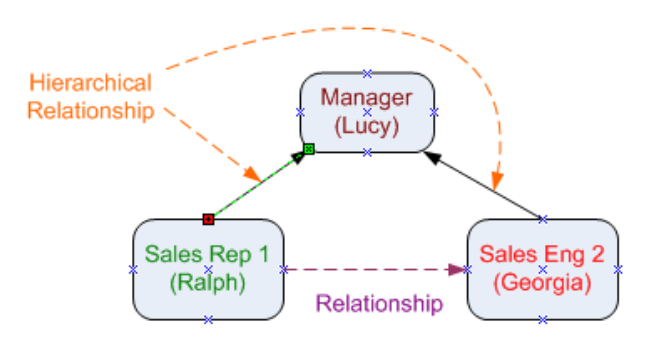
The rules that govern how each of these people are compensated are described in
the following sections.
Direct Credit Rule for Ralph
Define a Direct Credit Rule with the following attributes in the Rules Library:
• Open a new rule, name it Direct Printer Credit, and select Direct Credit as the
Rule Type.
• A possible condition for this rule could be:
IF OrderItem OrderType Equals Printers
which means that only order items with the order type Printers will be considered
for credit.
• When defining results for this rule, define the Value field as DirectCredit and the
Credit Type field as Printers.
• The rule should be Rollable (select that check box in the Results area), which
means that Ralph’s manager and anyone else with a relationship to Ralph will
also receive credit for the order.
Indirect Credit Rule Based on Hierarchy for Lucy
Define an Indirect Credit Rule with the following attributes in the Rules Library:
• Open a new rule, name it Indirect Manager Credit, and select Indirect Credit
as the Rule Type.
• Because Lucy is Ralph’s manager, you should base the rule on a Reporting
position relationship. (Select Reporting in the Position Relationship field.)
• If Lucy and Ralph are in the Western district of their sales territory, you might
add a condition similar to the following:
IF CreditOrderItem Geography Equals West
which means that the only order items for which Lucy can receive this indirect
credit are defined in the Geography Name field of the Order Staging area as
West.
• You might also add another condition (an AND statement) that specifies that
this rule only grants an indirect credit for printers:
AND CreditOrderItem OrderType Equals Printers
Relationship and Indirect Credit Rule Defined for Georgia
Define two things so that Georgia, the sales engineer, can be granted an indirect
credit:
• Relationship—Under Organization > Relationships, set up a relationship
between Sales Representative 1 and Sales Engineer 2 defined as relationship
type Sales Engineer.
• Indirect Credit Rule—Set up an Indirect Credit Rule called Indirect SR Credit,
and define the Position Relationship as Sales Engineer.
You can set up a conditional statement that specifies that the indirect credit is
only applied for printers:
IF CreditOrderItem OrderType Equals Printers
Applying the Rules
After these rules are created, you assign them to plans.
So far, we have created these rules:
• A direct credit rule called Direct Printer Credit created for the owner of the
order item, Ralph.
• An indirect credit rule called Indirect Manager Credit that can be used to give
an indirect credit to Ralph’s manager, Lucy.
• An indirect credit rule called Indirect SR Credit that can be used to give an
indirect credit to any sales representative.
Next, we need to assign each of these rules to the appropriate existing plan for
each person.
| Rule | Plan |
|---|---|
| Direct Printer Credit | Add this rule to the Credit Plan Rules section of the plan set up for Ralph’s position in the organization, which we will call Sales Representative 1. If no plan yet exists for Ralph’s position, create one. |
| Indirect Manger Credit | Add this rule to the Credit Plan Rules section of the plan set up for Lucy’s position in the organization, which we will call Manager. If no plan exists for Lucy’s position, create one. |
| Indirect SR Credit | Add this rule to the Credit Plan Rules section of the plan set up for Georgia’s position in the organization, which we will call Sales Engineer 2. If no plan yet exists for Georgia’s position, create one. |