
Plan Design > Periods
You can use the Periods area to configure and manage periods within Xactly Objectives. For each period, you can specify the plan evaluation period (either yearly or quarterly), the visibility to administrators and employees, and the visibility of manager evaluations to employees.
The plan evaluation period determines both the measurement and payment period for all plans in the period.
note: Objectives uses the periods (fiscal years and quarters) as defined in Incent. Administrators cannot change these calendars within Objectives.
Screen
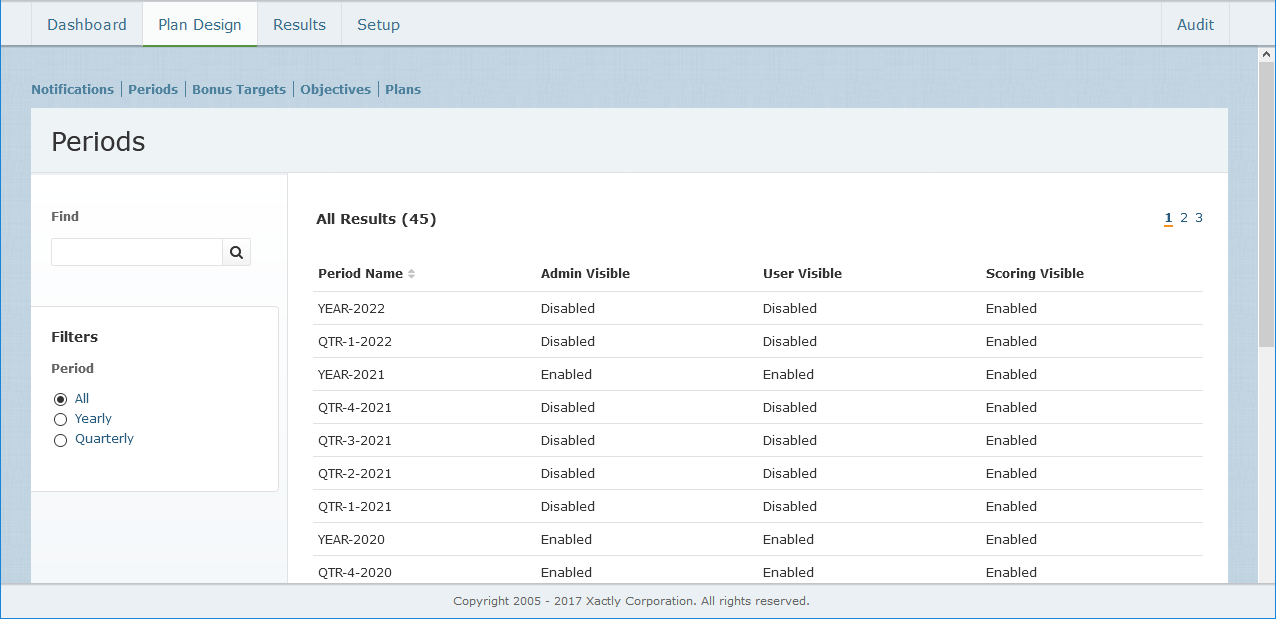 Periods Screen
Columns
The following table describes the information displayed when managing periods:
| Column | Description |
|---|---|
| Period Name | The name of the period. |
| Admin Visible | Indicates whether the period is visible to administrators. |
| User Visible | Indicates whether the period is visible to employees. |
| Scoring Visible | Indicates whether the manager's evaluation is visible to employees. |
How to …
This section describes how to manage periods.
Display Periods
Click the Plan Design tab, then click Periods in the secondary menu. The Periods screen appears.
- To find specific periods, type part of name in the Find text box, and click the
 button. The search results appear.
Click the button to clear the Find text box and reset the search results.
 - To filter periods, choose an option in the Filters section.
You can choose to display all periods, yearly periods, or quarterly periods. - Use the page navigation buttons to navigate between the pages of periods.
Edit a Period
1. Click the Plan Design tab, then click Periods in the secondary menu. The Periods screen appears.
2. Hover over a period in the list, and click the Edit button that appears. The Edit Period screen appears.
3. In the Plan Evaluation Period field, choose the corresponding period using the drop-down list.
You can choose from among the following options:
• Quarterly
• Yearly
note: You cannot change the setting for the Plan Evaluation Period after a plan has been created for the period.
4. In the Visibility field, specify whether the period is visible to administrators and employees.
If you enable visibility for administrators, the period appears in administrative options, search fields, and pick lists. If you enable visibility for users, the period appears on the Dashboard and in the My Team and My Objectives areas.
In general, administrators can configure upcoming periods in advance, and then make the periods visible when managers are ready to begin creating plans for the period.
5. In the Manager Evaluation Visibility field, select whether employees can view the measurements and comments entered by managers on their individual objectives.
If disabled, the plan’s manager evaluation tab is not shown to the employee. This prevents employees from gaining visibility into potential payouts before the payouts have been finalized and approved.
6. Click the button. Alternatively, click the
 button to dismiss the screen without saving your changes.